Prime: Work package order sharing
Overview
Once the the prime and the supplier responsibilities for a work package order have been identified (see section: Prime: Identify supplier) it can be shared with the supplier. When it is shared, the work package and all the information associated with the work package can be accessed by the supplier's users.
Documents can be shared in a secured way using the Work package order module. Selecting a Work package order will render information about it in the right pane.
An example of a selected work package order is shown below. The pane on the right shows the acquiring organization, the prime, and the supplying organization, the supplier, with whom the information will be shared. In the example, the fictitious organization “Naam001” is the prime sharing the work package order with the supplier “Naam013”:
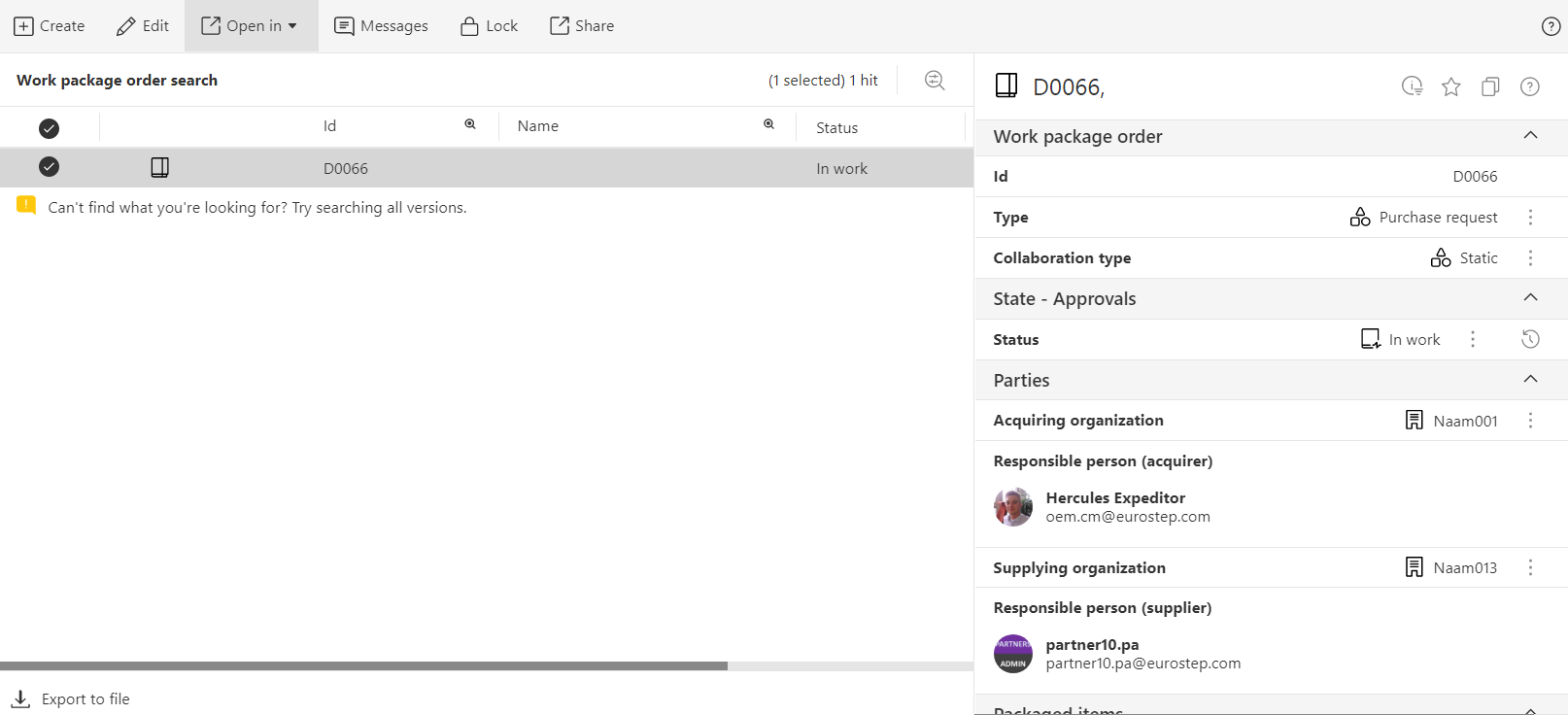
Once all the values are set in the Work package order, the information will be shared by clicking on the Share button as show:

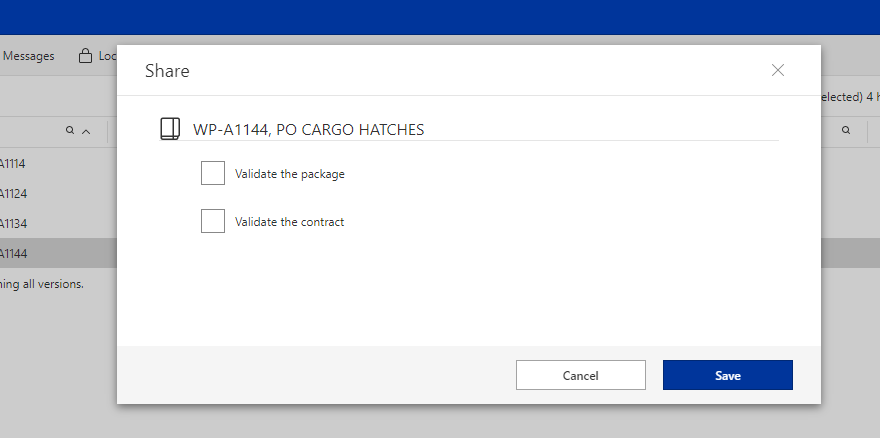
A window will pop up for optionally validating the Work package order. Ticking the boxes and clicking on Save will do the validation.
The validation will check that the due dates that have been set when the work package order was planned (See section Prime: Planning view) are not in the past. It will also check that the contract is valid.
After clicking the sharing is done, a hand icon will appear to the left of the ID:

The sign means that the Work package order is shared. If the organizations were to terminate the collaboration, the information can be easily unshared by clicking on the Unshare button:

The hand icon will then disappear and the information will no longer be accessible for the supplier.
The following video demonstrates sharing a work package order.