Prime: Planning view
Overview
This section explains the planning process using the planning view for the information items being requested.
Once a work package order has had an RFI template applied (See section: Prime: Apply template), each part associated with the work package order will have a structure of an information set sections for which information is being requested.
The delivery of the requested information is then planned by:
- Assigning the users that are responsible for the different information set sections
- Assigning the dates when the requested information is due
- Specifying the information sets that the supplier is required to deliver information for
Planning process
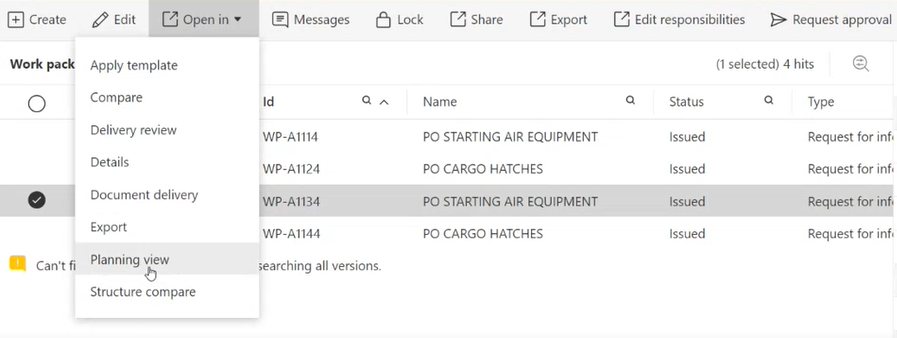
Selecting a Work package order and opening it in Planning view will redirect to a new tab. In this view, the user can monitor the responsibilities and due dates of the different categories related to the Work package order:

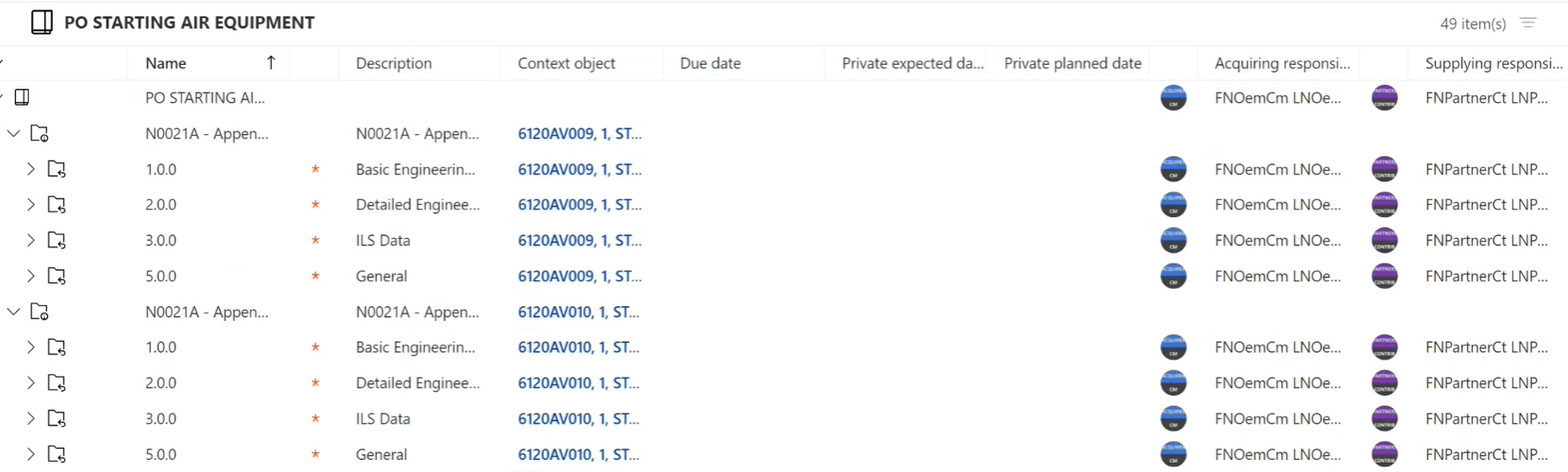
Clicking on the ”>” button will expand the structure of the related object in the Work package order, in this case a Purchase order.
In this example, the responsible persons are automatically set. However, the planned Due dates are not set:
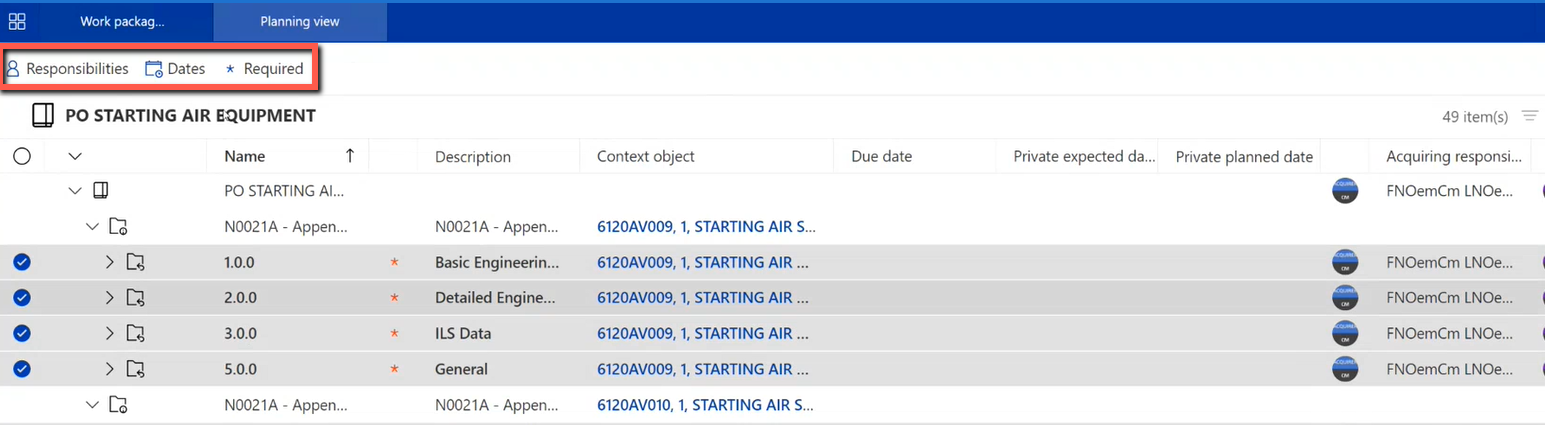
The User can select the desired sections and/or sub sections to update by either filtering in the list or selecting directly from the list. Once selected, three new buttons will render where the User can choose to set Due dates, Responsible users and required information:
Clicking on “Dates” will open a popup window where the User can set the Due dates for the sections. Two different dates can be set, Due date and Private expected date. Due date indicates the due date for the section. Private expected date is a date that can be set by the User and indicates when the User expects the documents to be delivered. This date can only be seen by the User. Both dates can be selected from the form by clicking on the calendar icon next to the dates and selecting desired date. The selected sections will be visible under Update:
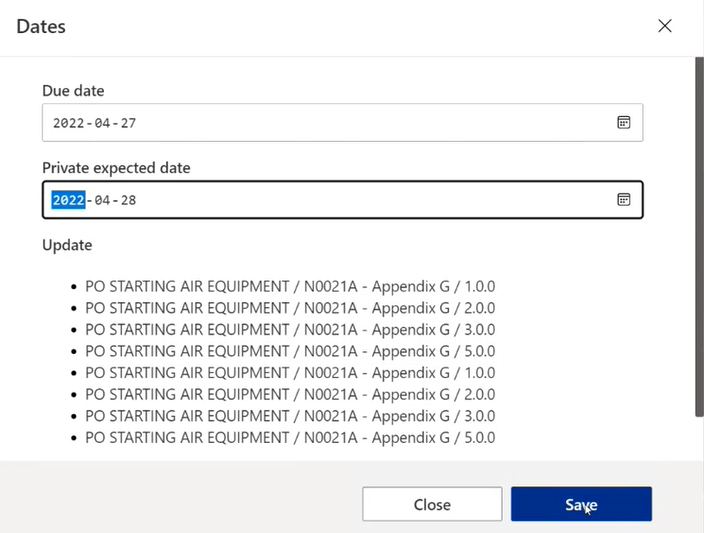
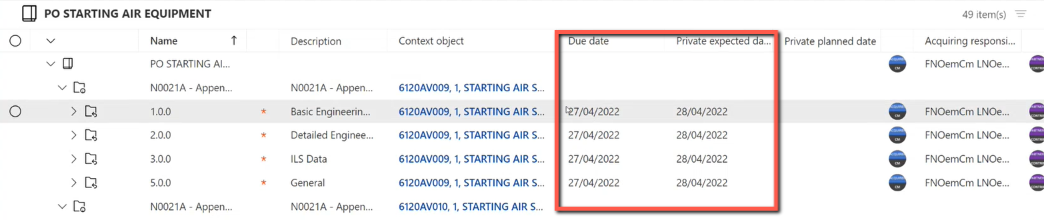
Clicking on Save will close the form and add the dates to the selected sections:
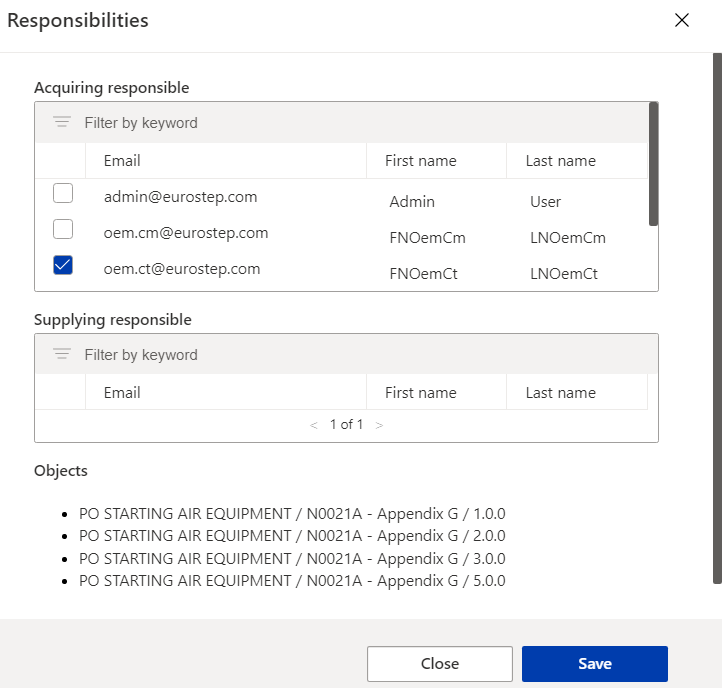
Clicking on Responsibilities will open a popup window enabling the User to select Responsible person on the selected sections. When logged in as Participant, the User can set Acquiring responsible by selecting it from the list. When logged in as Partner, the User can set Supplying responsible by selecting it from the list. Clicking on Save will add the selected User as responsible and close the window:
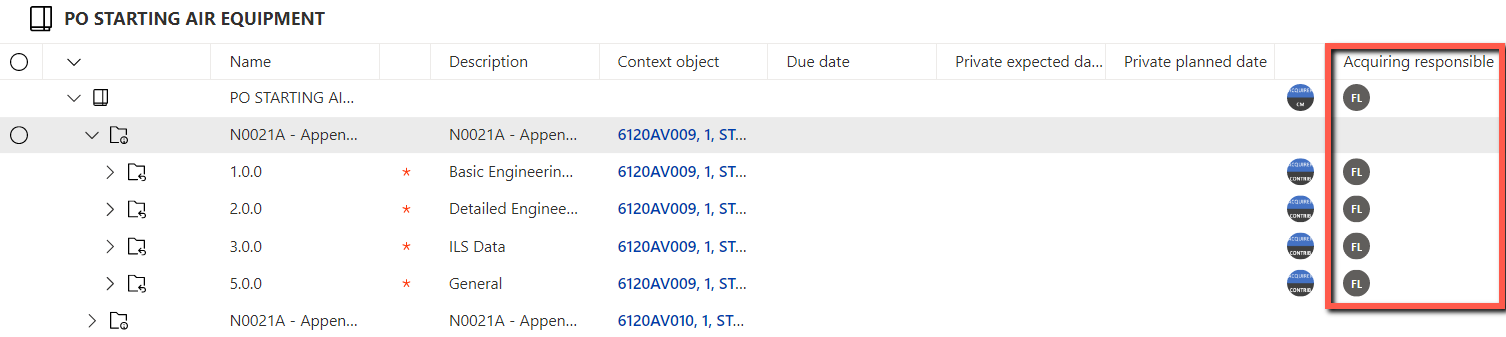
The responsible Users can now be seen in the list:
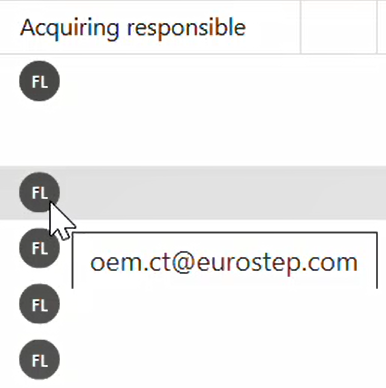
Hovering over the icon will show the email address:
The following video demonstrates planning a work package order.