Notification
Overview
This section explains the notifications in D2M.
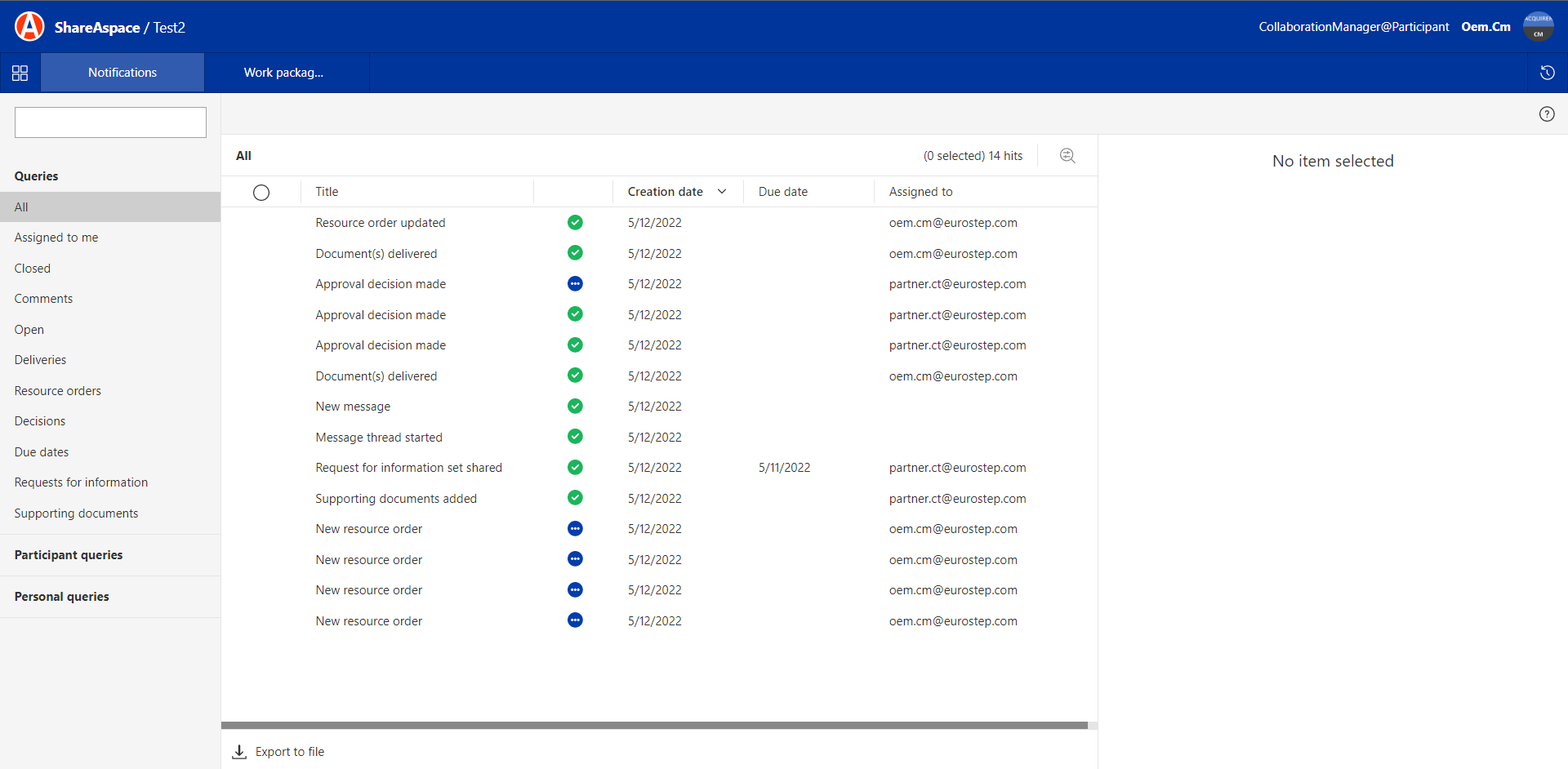
Notifications are system generated items which provide an overview of important events that have happened in a space. There are different Notification types – based on event type. Notifications are intended to be used as a guidance to identify if any action needs to be taken by a user.
The notifications are involved in the following activities:
- To make it easier to find out where a user needs to take actions, notifications are connected to context object and reference objects.
- To filter and find relevant notifications, there are several predefined queries which could be used.
- To see if there is a new notification, a user will have the Notification module active on the space start page.
- The number icon will show the total number of active notifications that the user has access to.
Notification types
- New resource order: New resource order is created in space
- Work package order ready to be shared: Attached contract to a work package order is set to valid
- Information shared: Request for information is shared with supplier
- New part(s) on resource order: New line items on purchase request
- New supporting documents: New supporting documents is shared with supplier
- Due date approaching: Due date approaching in 14 days
- Due date passed: Due date passed
- Information delivered: Information deliveries are set to delivered by supplier
- Decision made: Approval decision made
- Message thread started: Indicates that a user has created a message on an object e.g. work package order
- New message: Indicates that there is a new message in an already existing thread
Actions
- To use notifications as a task list:
- A notification could be manually assigned to a user
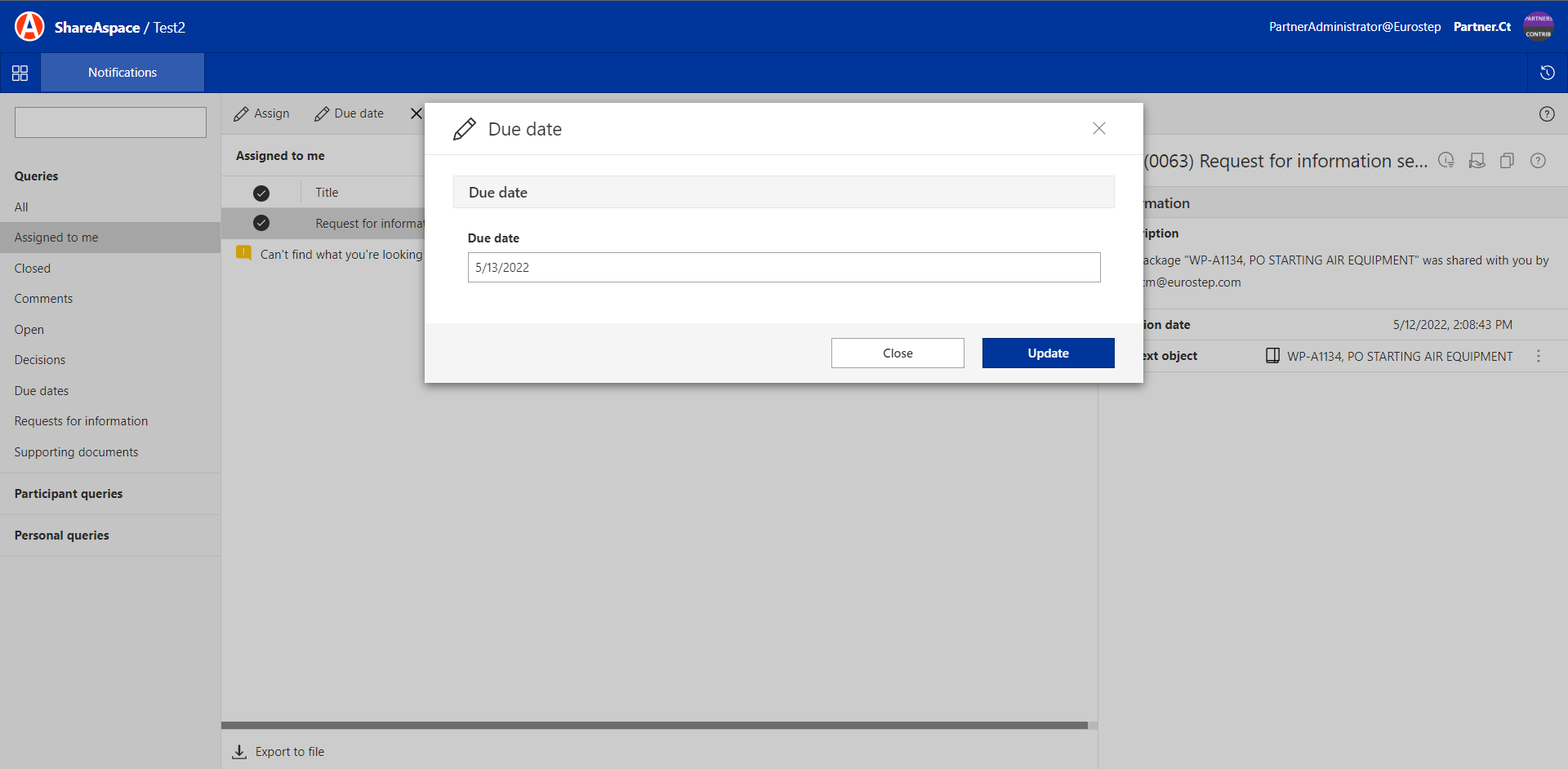
- A due date could be set manually on notification as shown in the following figure:
- To avoid having a long list of notifications, a user can close a notification once the action has been handled. As shown in the following figures:
To make it easier to handle the notification list, multi select could be used to select several notifications and manage them at once.
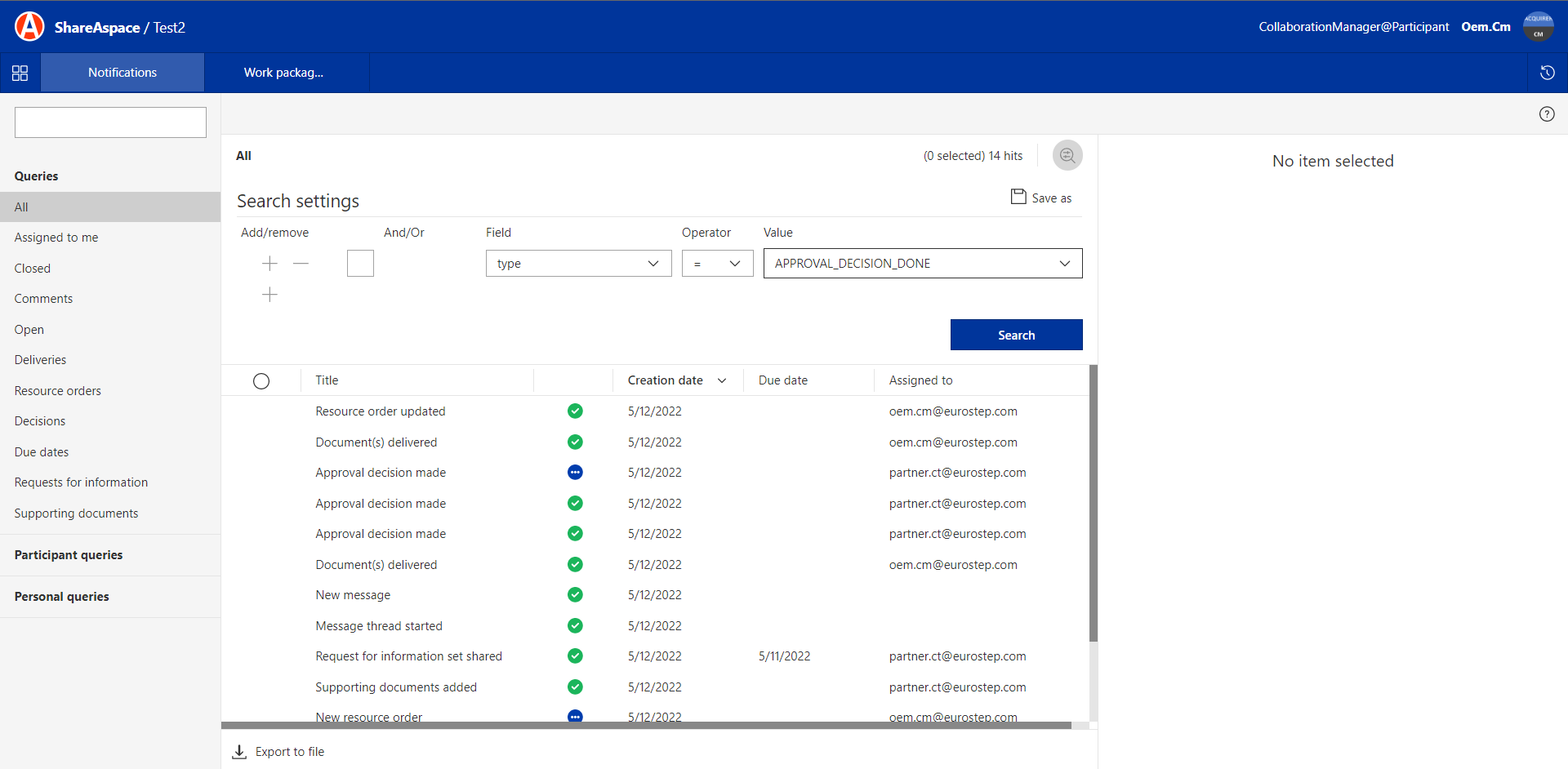
Additionally, notifications can be found using the search functionality. Each user can create personal queries, refer to queries section.
Prime: Notification
The following figure shows the queries that are available for the prime.
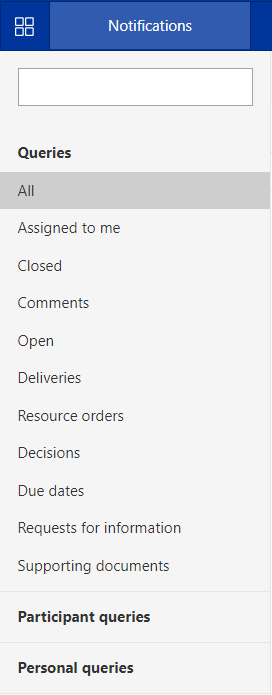
The Prime has access to all the notifications within the space. Including "Deliveries" and "Resource orders" which are not available for the Supplier.
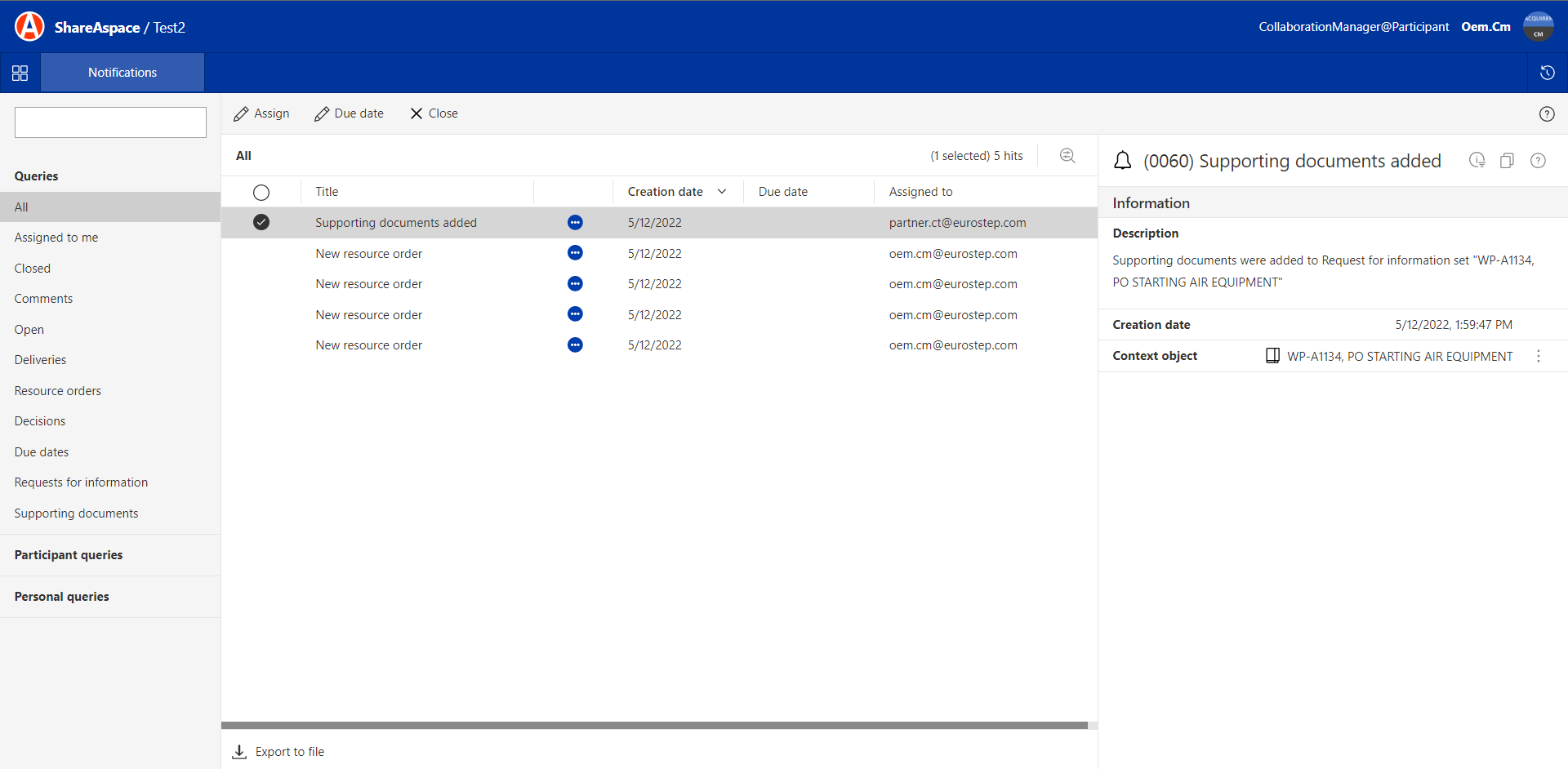
Supporting documentation can be attached to a Work package order, this action will trigger the following notification for the prime:
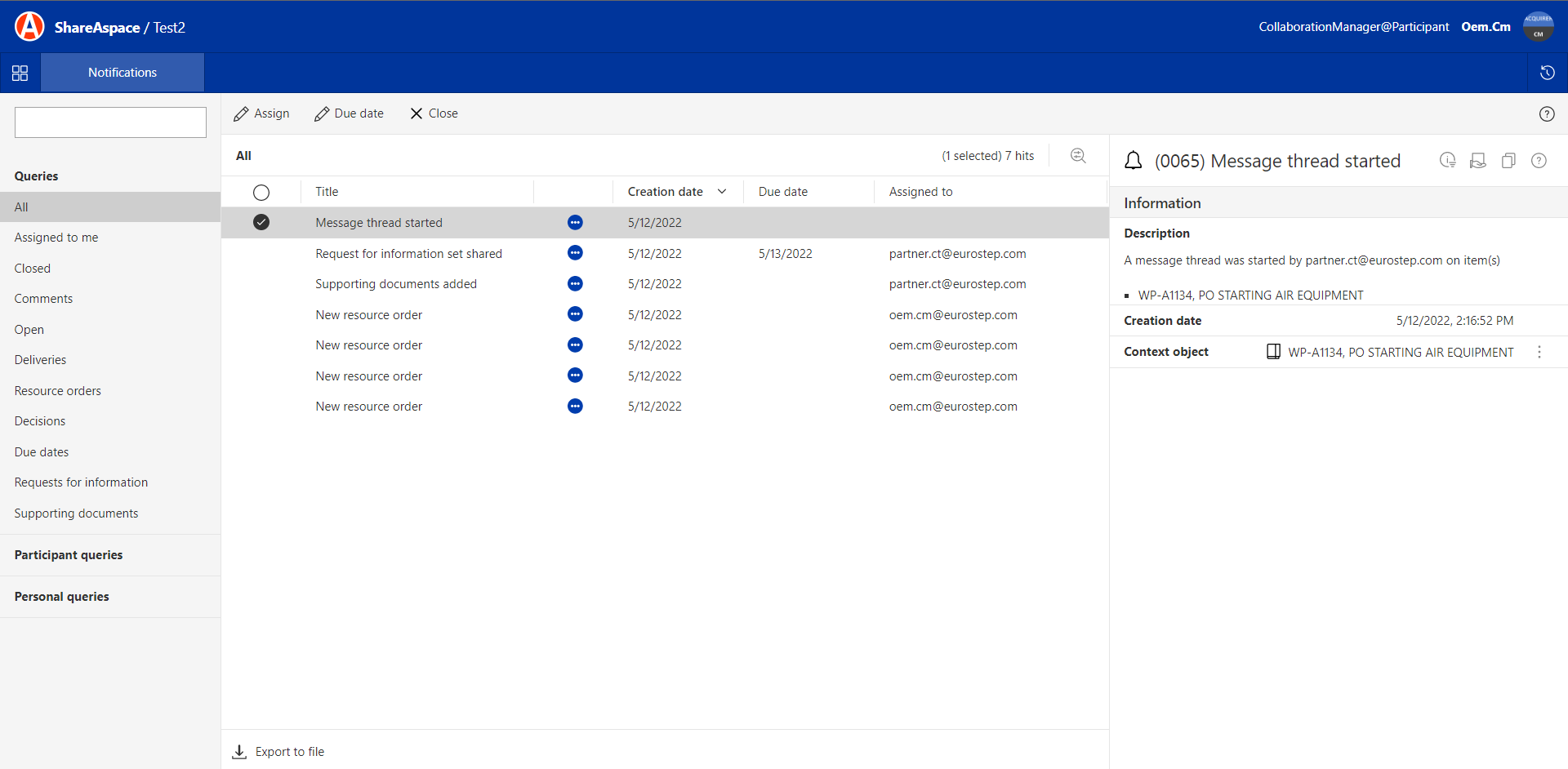
In case the supplier creates a message thread to communicate back to the prime. The following notification will be received:
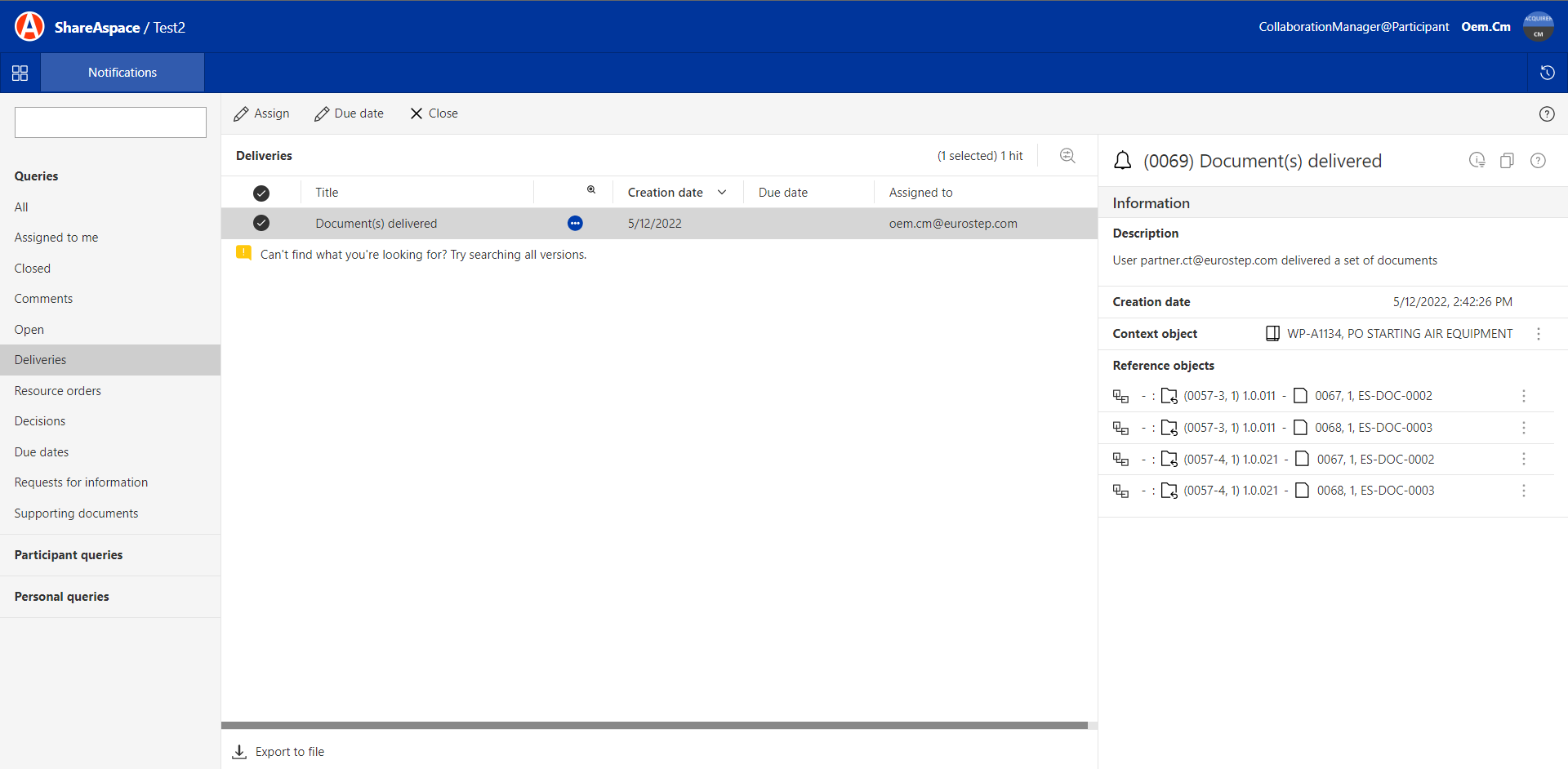
Once a supplier delivers documents, the prime will receive the following notification:
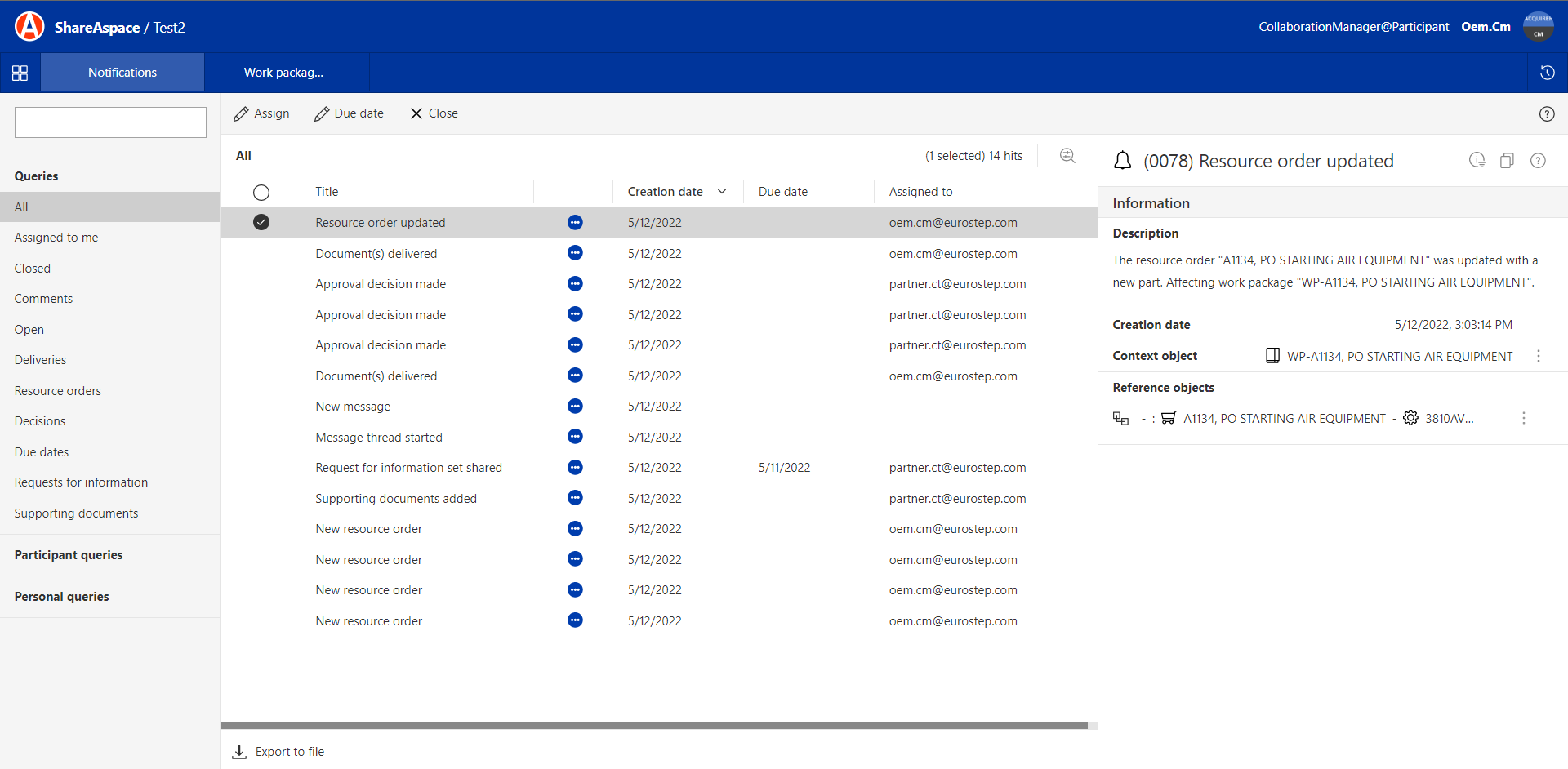
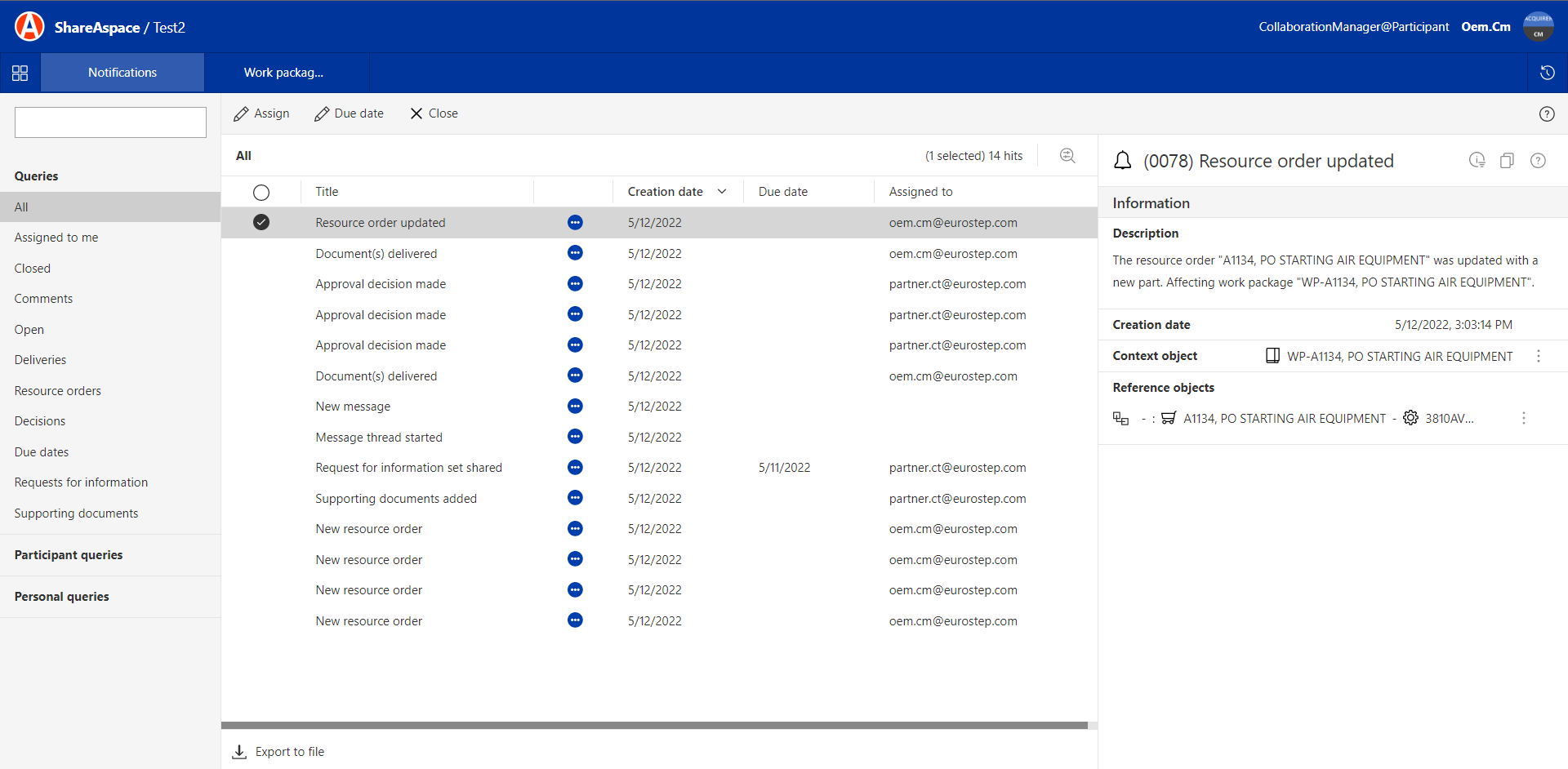
If a Resource order is updated by a prime user, the following notification will be created:
Supplier: Notification
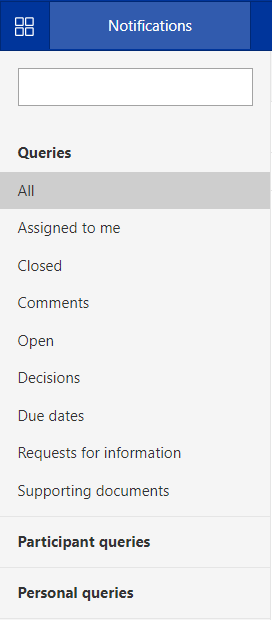
The following figure shows the queries that are available for the supplier.
The following notification will be created for the supplier once a "Request for information set" is shared with them as shown in the following figure:
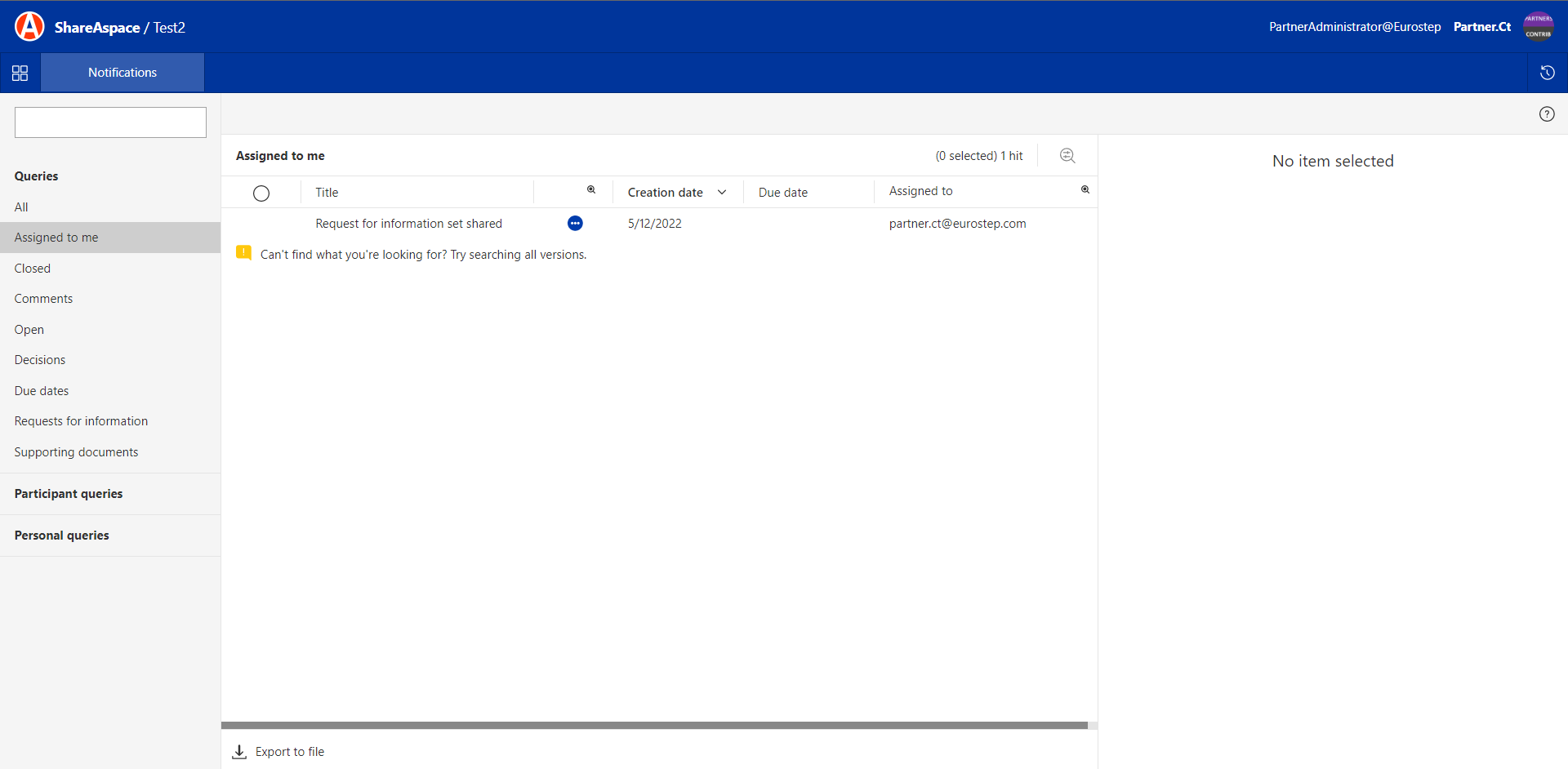
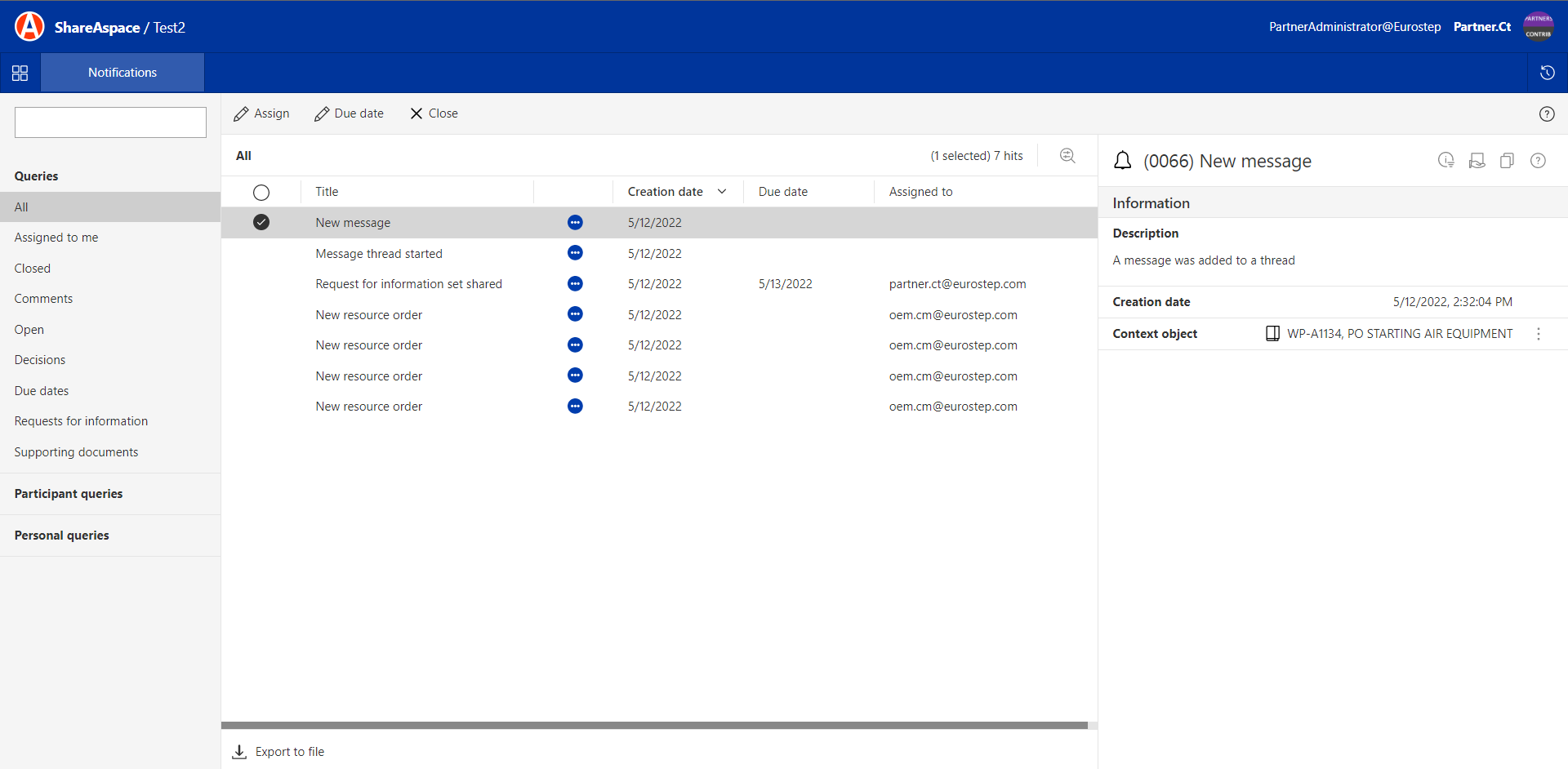
The supplier has the option to create a message thread to communicate to the prime whenever is necessary. Once a thread is created, the prime will receive a notification as shown in the previous section. Once the prime replies, the supplier will receive the following notification:
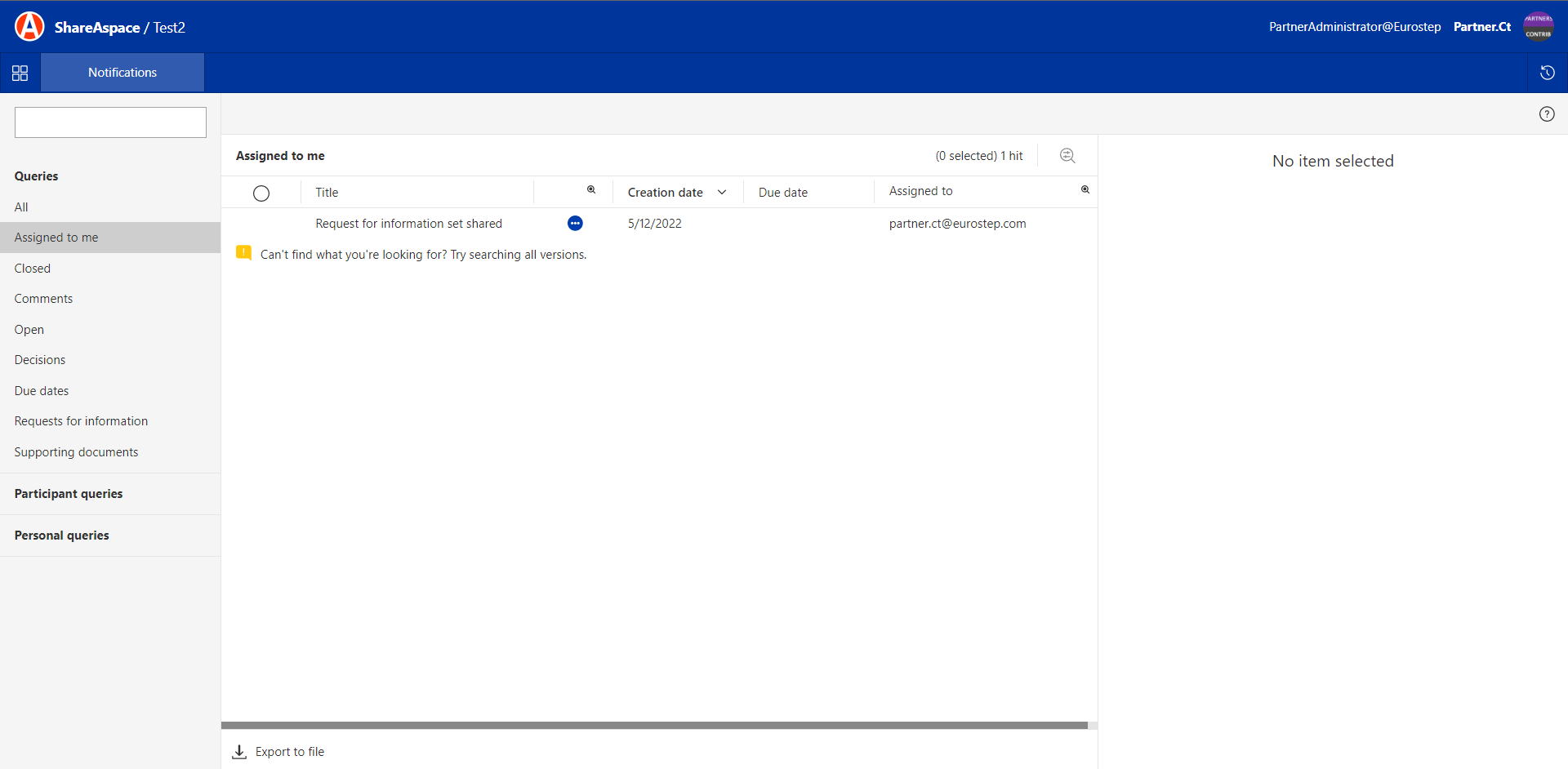
If a supplier user gets assigned by the prime to a specific delivery, that user can find that notification in the query "Assigned to me" as shown:
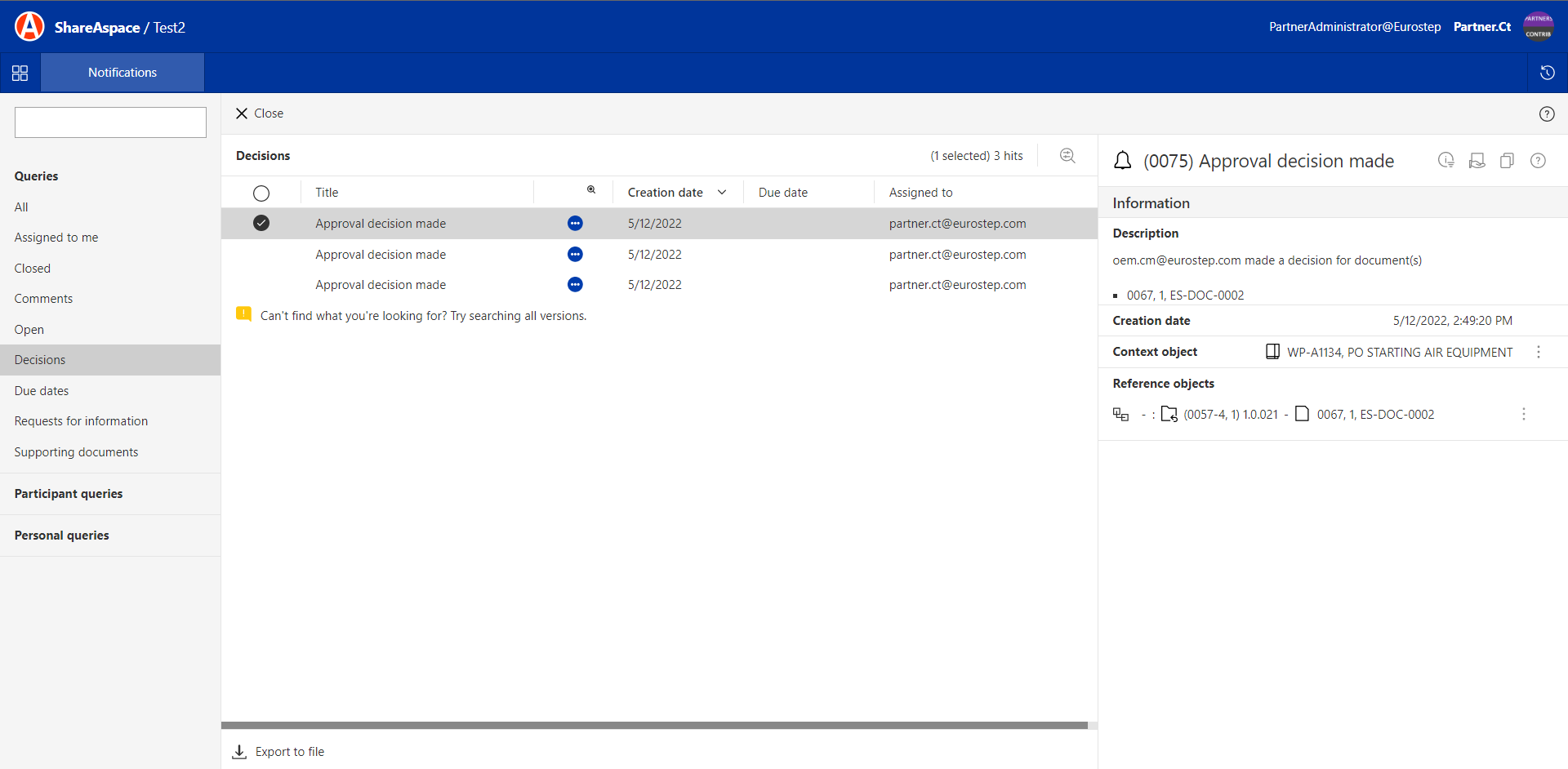
Once an approval decision is made by the prime, the supplier will get notified as shown in the following figure: