Prime: Approval
Overview
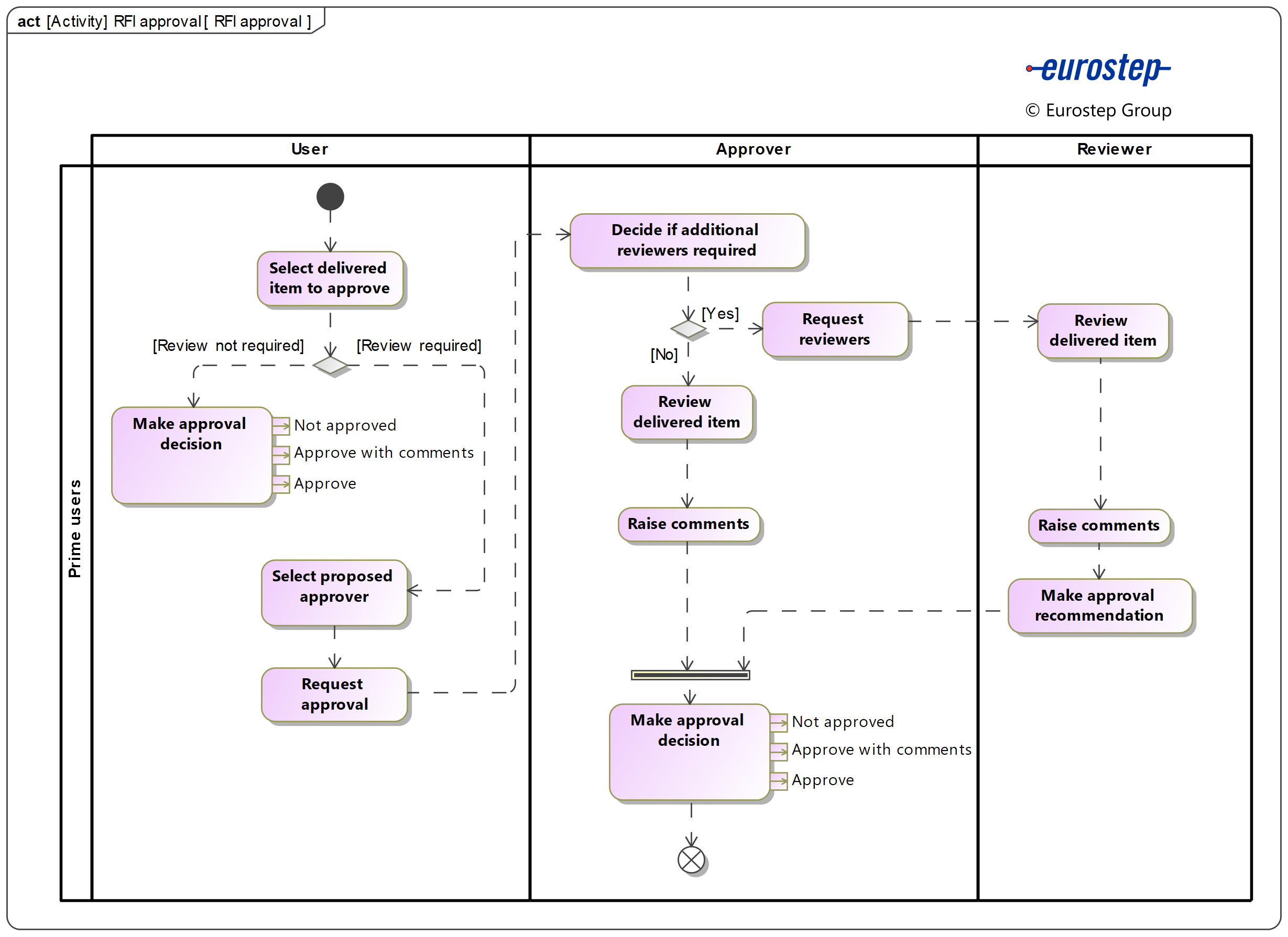
This section explains in detail the approval process for the delivered items. The process involves the following activities:
- Approval process
- Make decision directly
- Request for internal review
Approval process
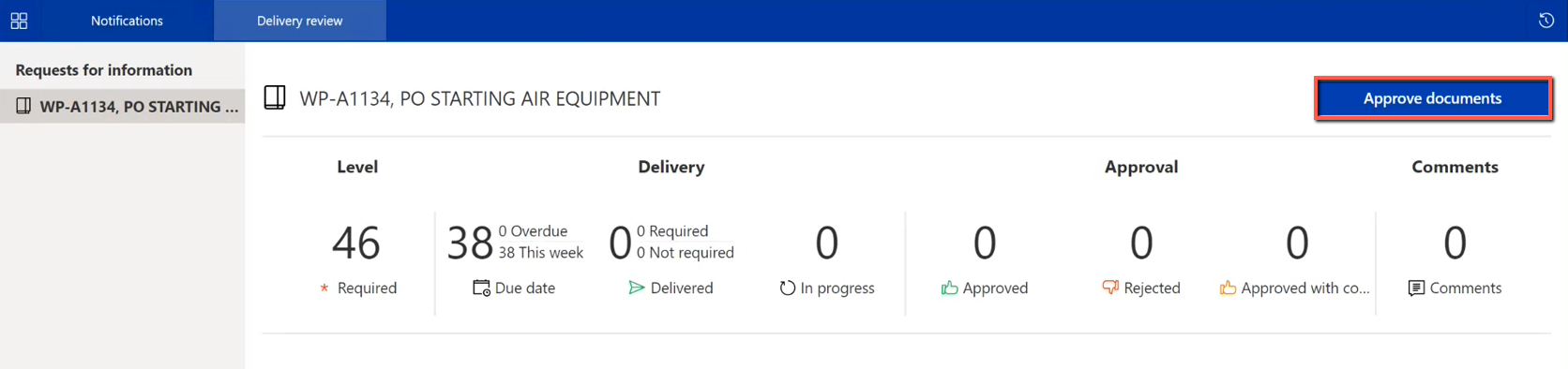
Opening a Work package order in Document review view will render a dashboard. Clicking on “Approve documents” button will show the requested information and deliveries under the Work package order:
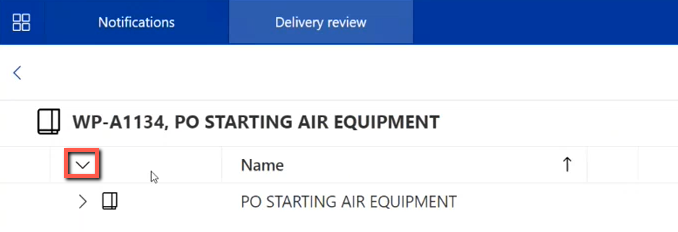
Clicking on the down arrow will expand the structure of the Work package order referenced object:
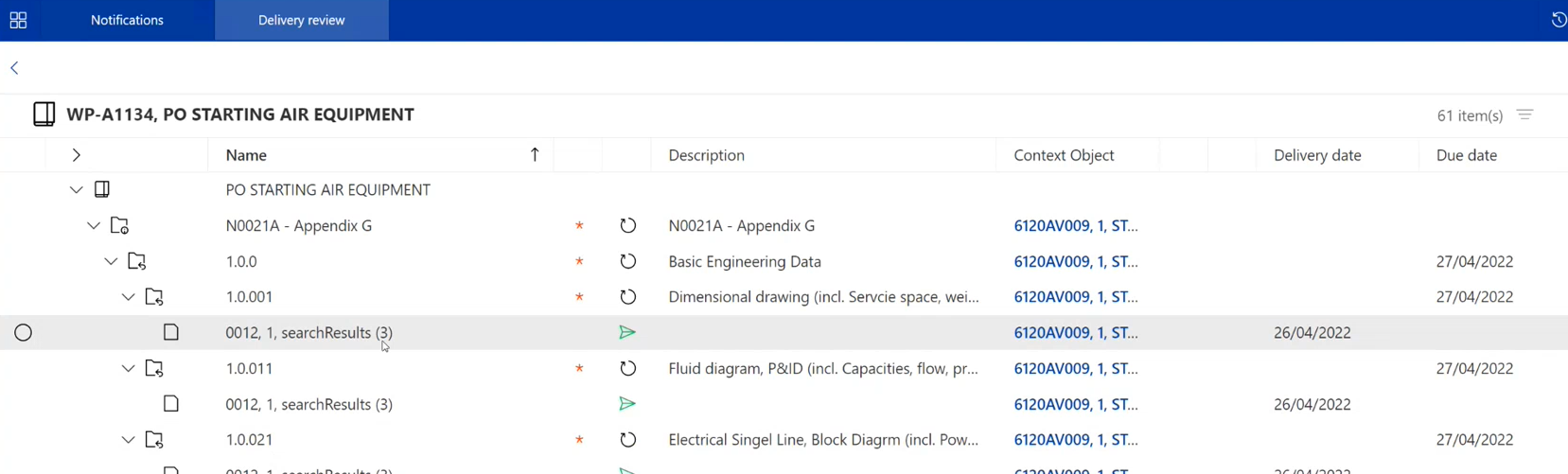
The delivered documents are shown under each sub section. Once selecting the desired documents, an Approval button will show up. Clicking on it will enable the user to either select “Start approval process” or “Make decision” directly.
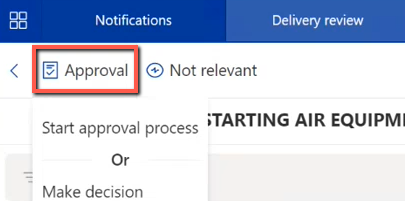
Make decision directly
“Make decision” is the quickest alternative if the reviewer immediately sees that something is wrong and wants to make a quick decision to not approve the documents. Clicking on “Make decision” will open up a popup window where the user can set the decision, for instance “Not approved”:
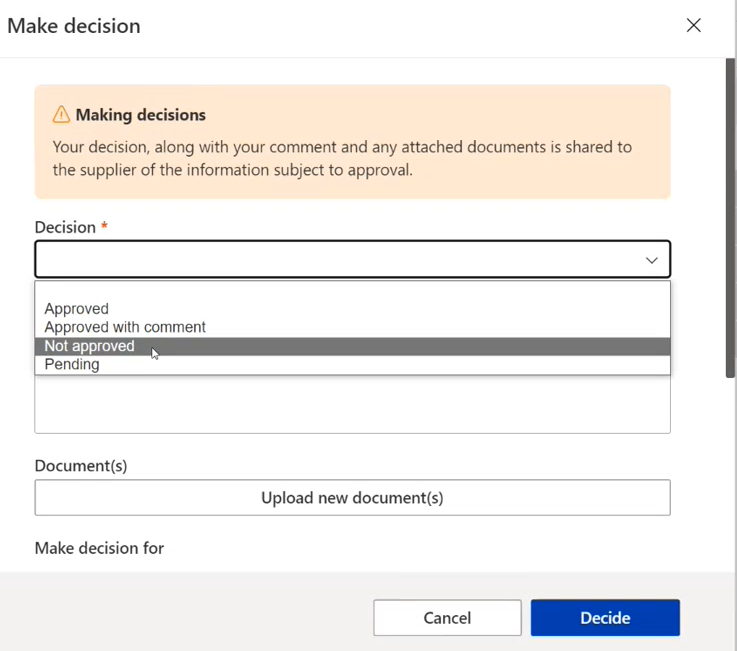
The user can then type in an explanation for the decision under “Comment” and upload additional documents. The documents subject for the decision are stated under “Make decision for”:
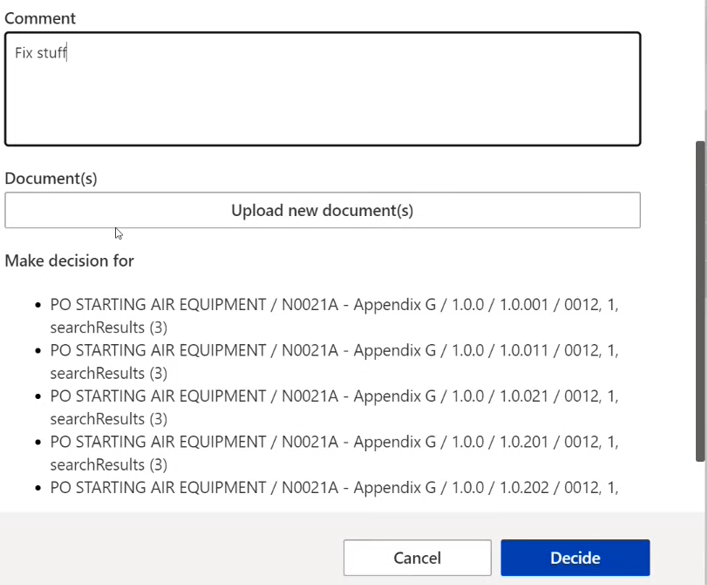
Once the fields are uploaded with the desired values, pressing “Decide” will create a decision. The concerning documents will then receive a thumb down icon:
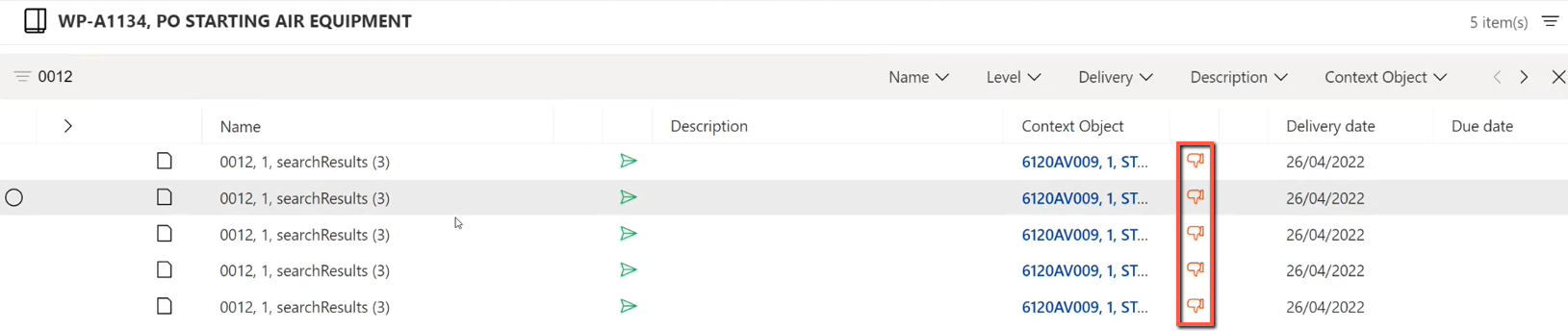
The documents are now rejected.
Request for internal review
“Start approval process” is another alternative for making a decision. This alternative makes it possible to involve more reviewers to the documents. Clicking on “Start approval process” after selecting the desired documents will open a new popup window where the user can insert information before creating a request for approval. The user can now type in the title of the request, comment, due date and select an approver for the request. The concerning documents are stated under “Approval reference object”:
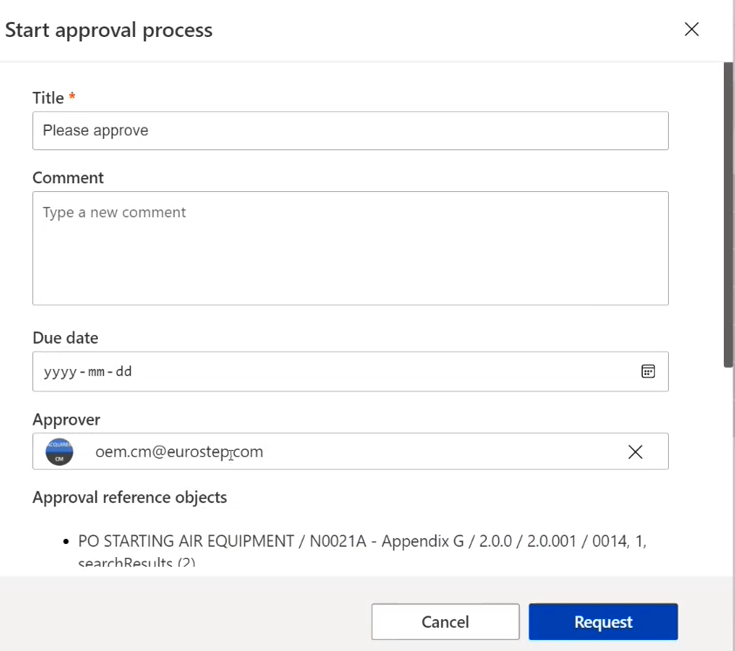
Clicking on “Request” will create an Approval request. The Approval request can be found in the Approval request module:
Clicking on the Approval request will show up information about the request in the right pane:
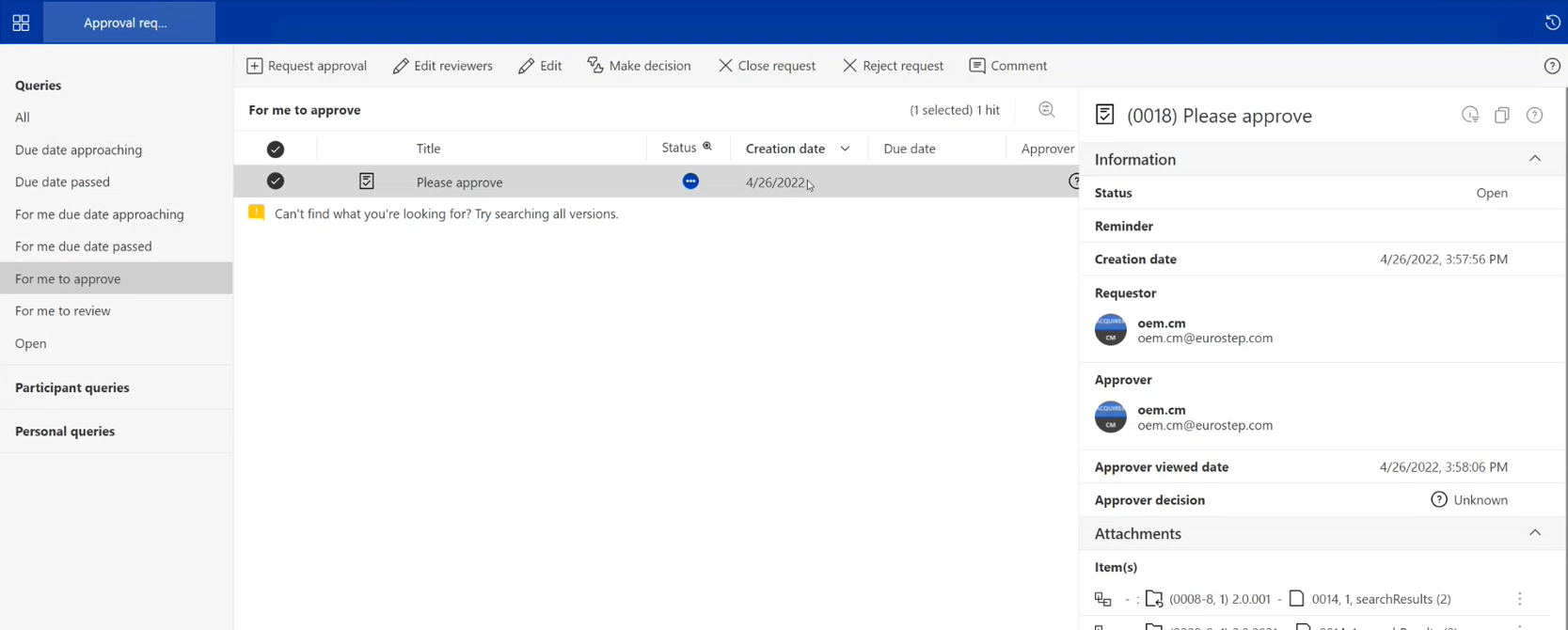
The user can add a reviewer to the Approval request by clicking on the “Edit reviewers” tab:

This will open up a new popup window where the user can search for the reviewer and add it to the request:
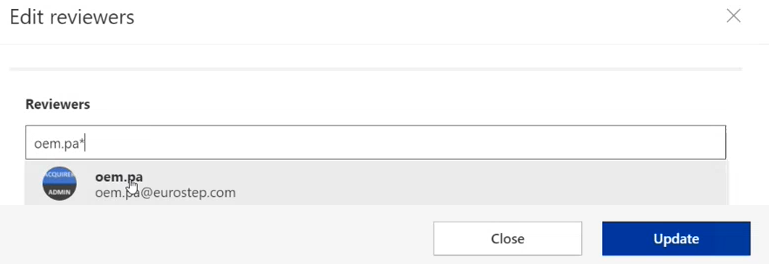
Clicking on "Update" will add the selected user as a reviewer.
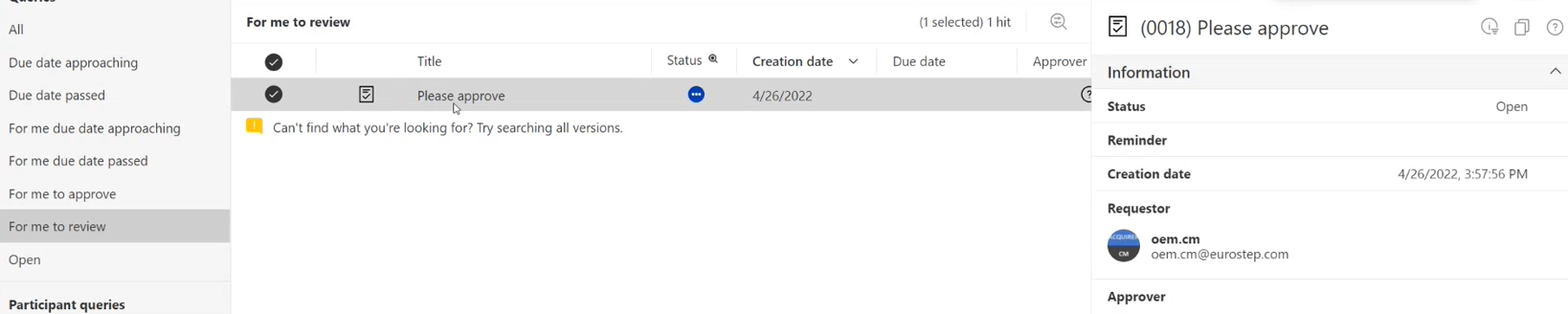
The user that has been added as a reviewer of an Approval request can access it in the Approval request module by clicking on the Query “For me to review” and then selecting it:
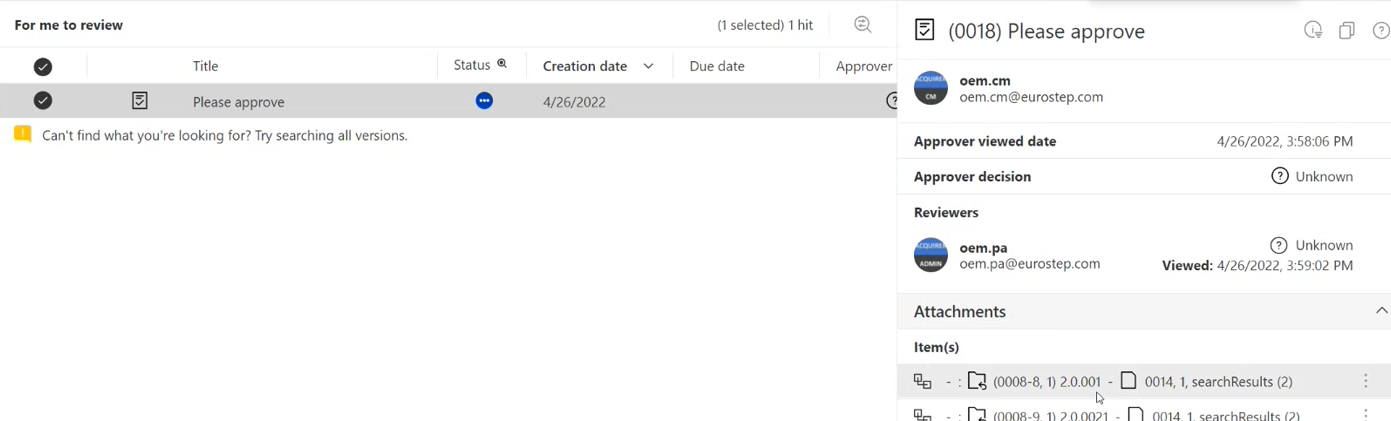
The reviewer can review the Approval request in detail by clicking on the “three dots” icon next to the item and then clicking on “Details”:
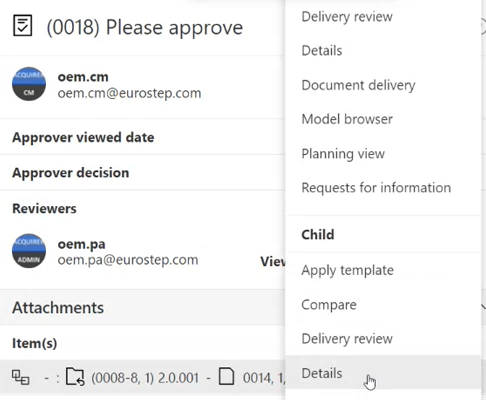
Once clicking on “Details”, the item will be opened in Details view. The reviewer can then close the tab by clicking on the “x” icon:
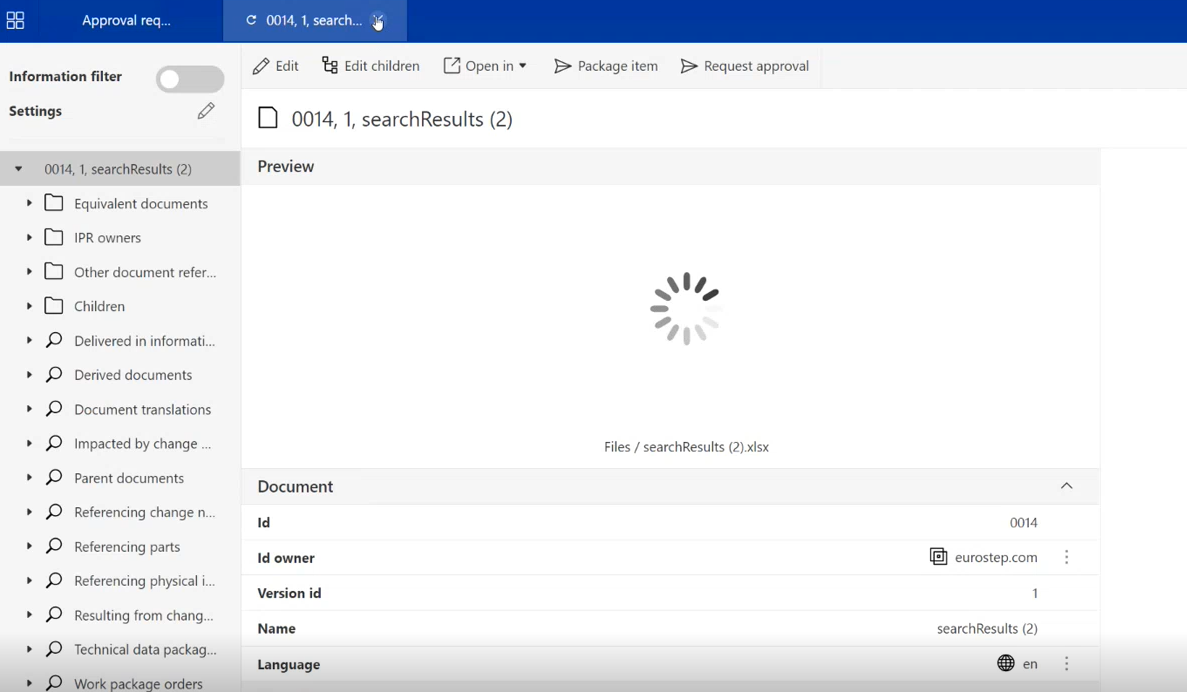
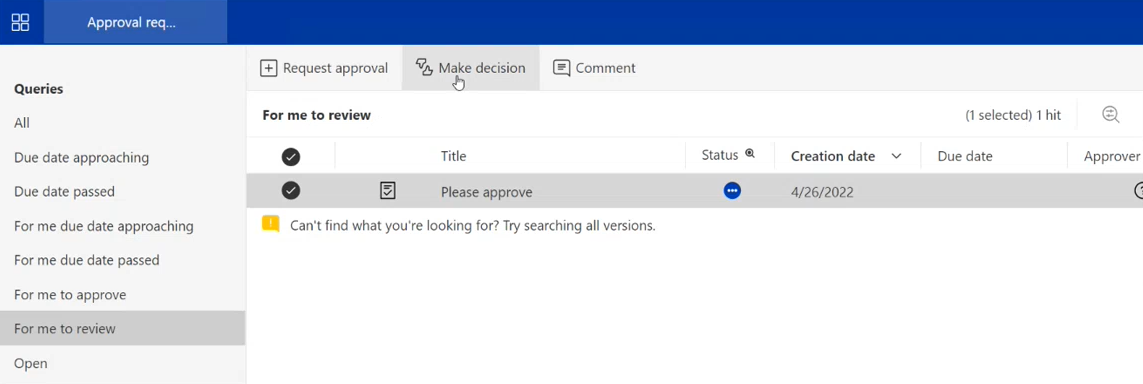
The Reviewer can now make a decision by clicking on the “Make decision” tab:
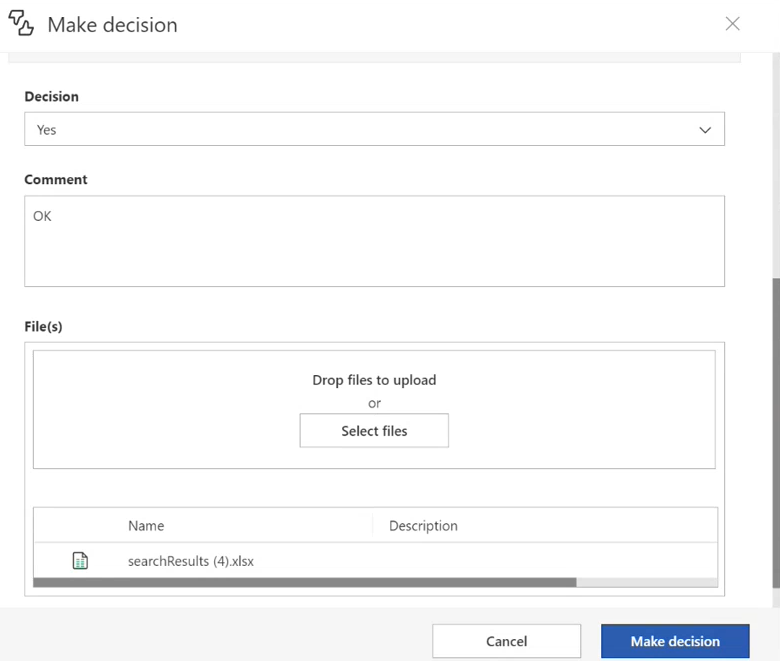
A new popup window will show up where the Reviewer can set the decision, insert a comment and attaching files. The Reviewer can now approve the request by setting Decision to “Yes” and clicking on “Make decision”:
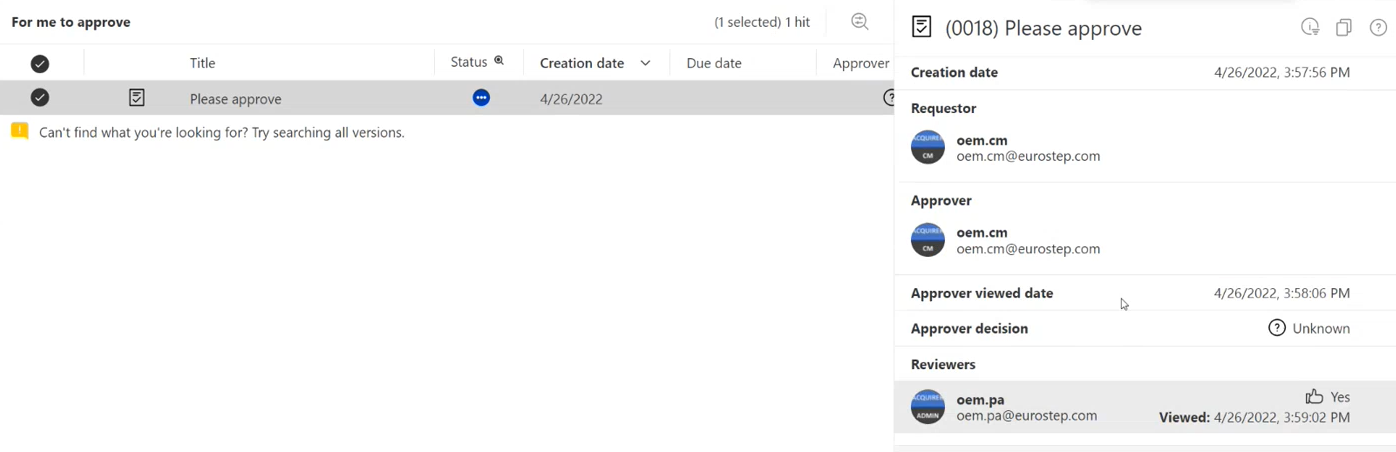
The Approver can now login and enter the Approval request module to select the Approval request. The Approver can also see that the Reviewer has approved the request:
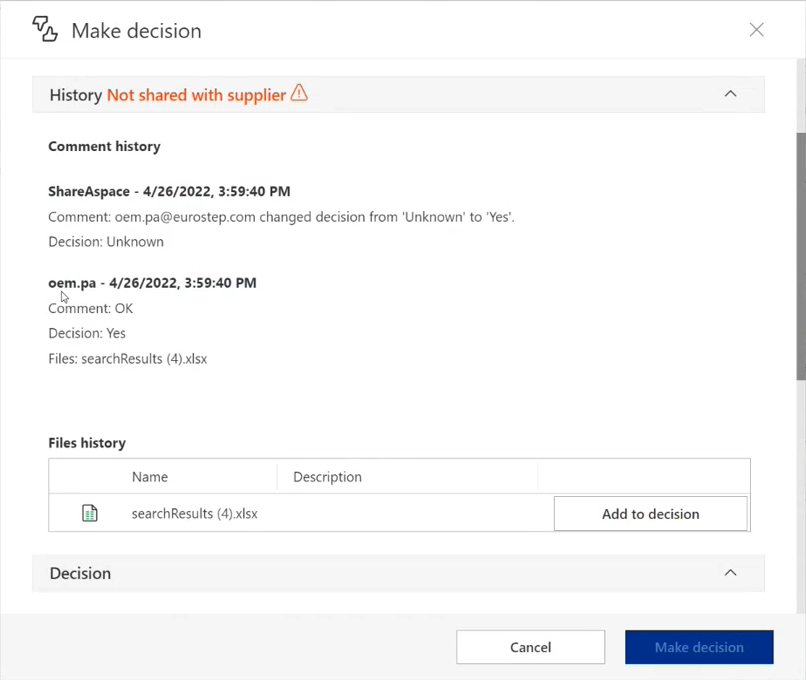
Clicking on the “Make decision” tab will open up a new popup with a summary on the history of the request:

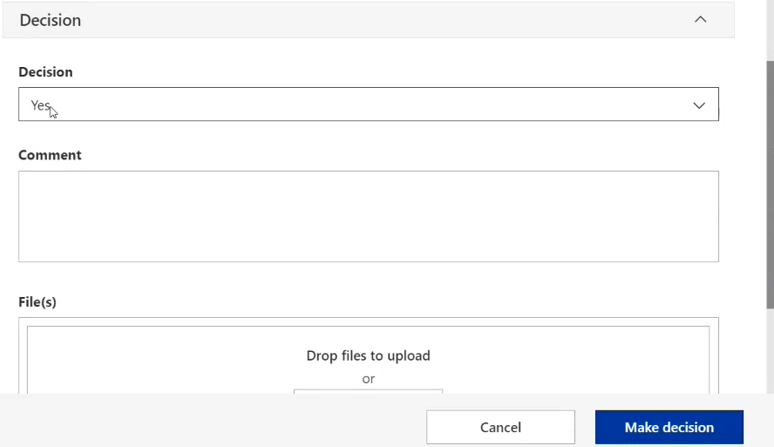
In the same form under the “Decision” tab is where the Approver can make the decision. Setting the Decision to “Yes” and clicking on “Make decision” will approve the Request:
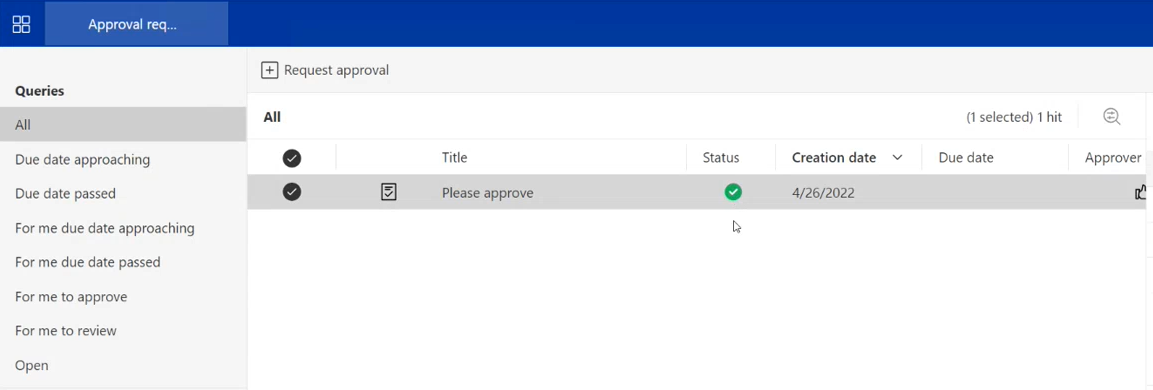
The Request will now show up in the “All” Query with a green tick icon under Status:
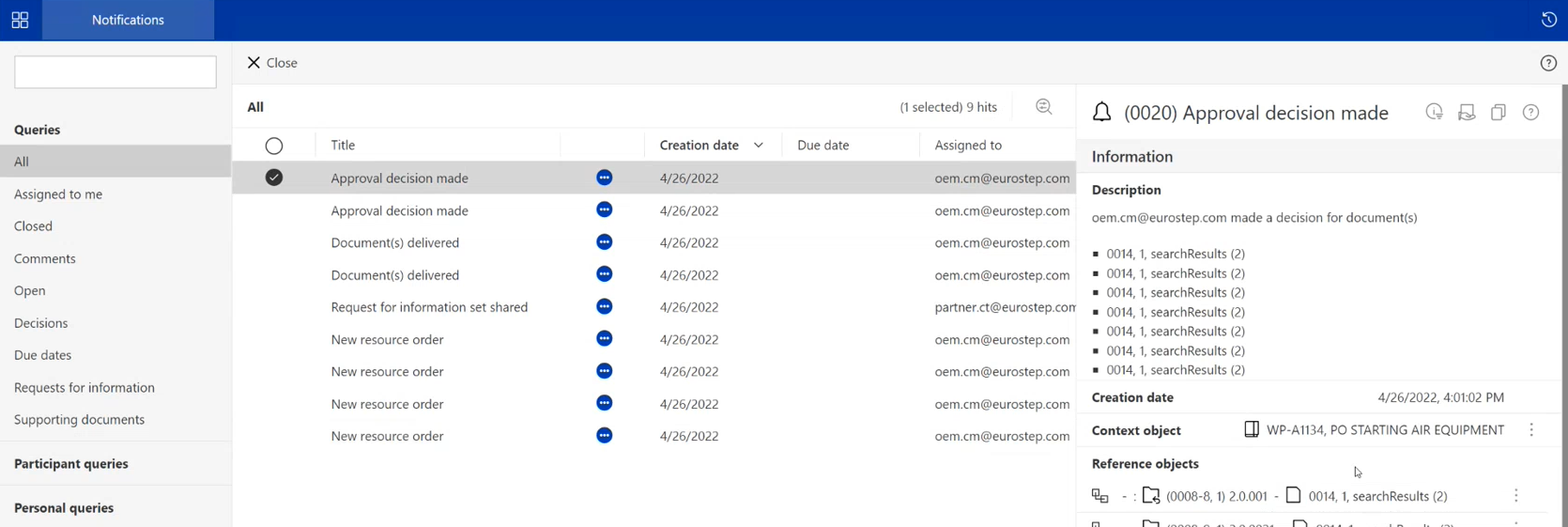
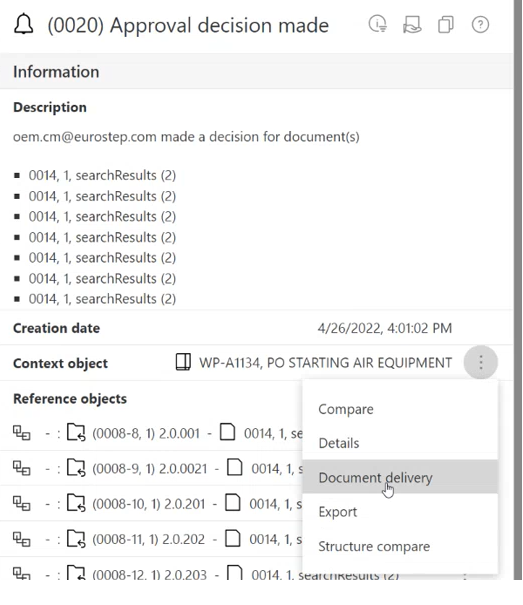
The Partner can now login and see the history of the changes in the Notifications module:
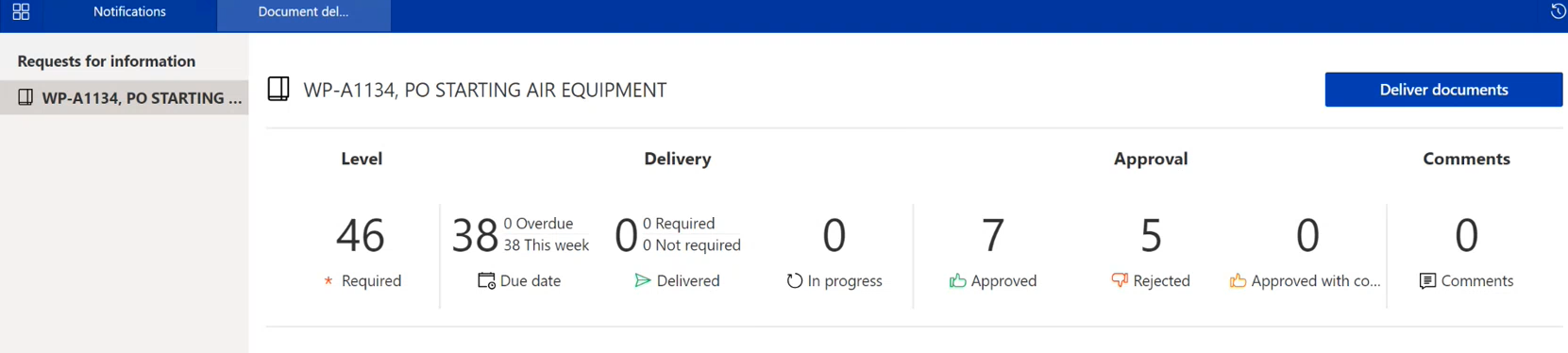
Clicking on the “Three dots” icon next to Work package order and opening it in Document delivery view will open up a new tab with a dashboard:
The approved and rejected documents are now updated with a digit representing the sum of the documents within the respective status. Clicking on the digit will show a separate list of those documents: